Augmenting EdTech with Personalized Learning

Technology

How to Download Unknown Apps on FireStick

Want to install apps on FireStick that aren’t available in the official Amazon App Store? This simple guide shows you how to download unknown apps on FireStick, enable the right settings, install them safely, and remove them anytime.
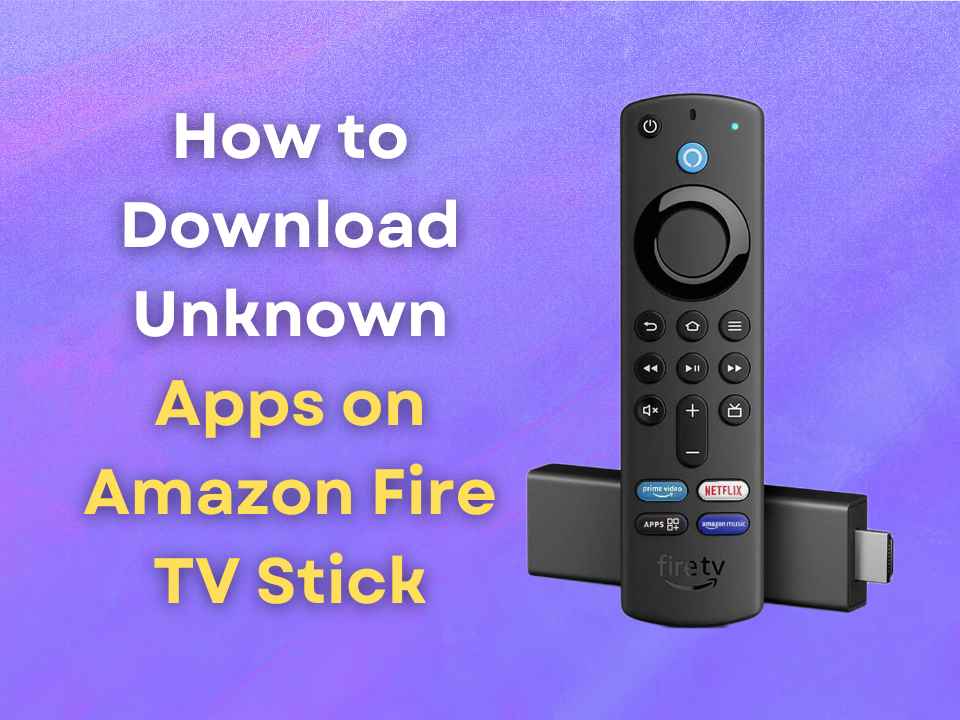
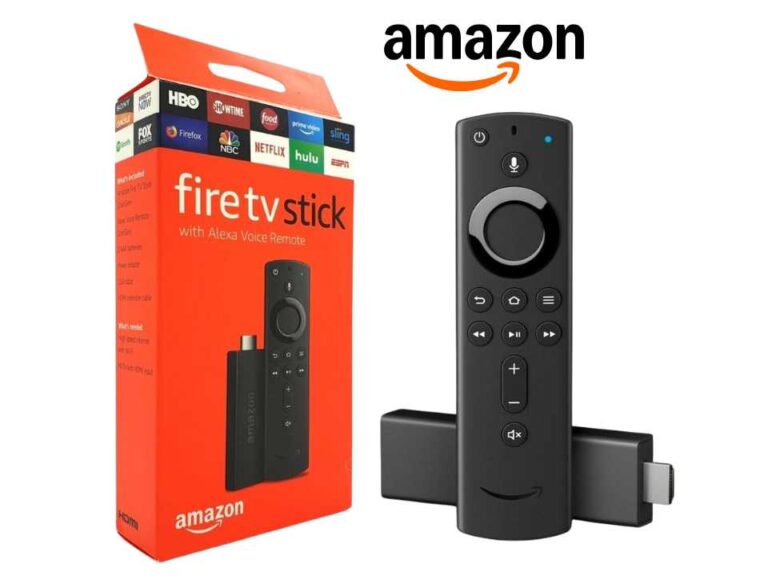
Have you ever felt like your FireStick is hiding some really cool apps from you, especially when you’re trying to download unknown apps on FireStick that aren’t available in the official app store? Maybe the app you want isn’t showing up in the official store, and that can be frustrating. Don’t worry. You’re in the right place.

This guide will show you exactly how to download unknown apps on FireStick, how to install them step-by-step, how to turn on the setting that allows these apps, and even how to remove them later if you no longer need them. No tech skills needed. Everything is explained clearly and in the simplest way possible, as if you’re learning it for the very first time. Ready to unlock more from your FireStick? Let’s get started!

What does “Unknown Apps” mean?

How-To-Download-Unknown-Apps-On-FireStick

When your FireStick says an app is “unknown,” it simply means the app is not from the Amazon Appstore. FireStick blocks unknown apps by default, so you don’t accidentally install something bad. But sometimes you do want to install apps that are not in the store, like special video players, tools, or apps from developers. That’s when you need to learn how to download unknown apps on FireStick and how to install 3rd-party apps on FireStick safely.

Step 1: How to Allow Unknown Apps on FireStick

Before you can install anything that didn’t come from the official app store, you have to turn on the setting that lets your FireStick accept apps from outside.

Here’s how:

  1. Turn on your FireStick and go to the Settings menu.
  2. Select My Fire TV (or Device).
  3. Then choose Developer Options.
  4. Look for the option called Install Unknown Apps.
  5. Switch it ON for the app you’ll use to install files (like Downloader).

This is how to allow unknown apps on FireStick so that you can add apps that the normal store doesn’t have.

Tip: Some older Fire OS versions say “Apps from Unknown Sources.

If you see that instead, just turn it ON and it means the same thing. FireStick will then allow you to install files that you bring in yourself.

Step 2: Download the “Downloader” App

To install apps that aren’t in the store, many people use a helper app called Downloader. It’s free and safe.

Here’s how you get it:

  1. Go to the FireStick Search button.
  2. Type Downloader.
  3. Open it and choose Download.
  4. When it finishes, open the Downloader app.

This app lets you type in a special link and get the app file you want right on your FireStick.

Step 3: How to Install 3rd Party Apps on FireStick

Now that your FireStick is ready, here’s how to install apps from outside the store.

There are two main ways:

Method 1 – Install with Downloader via Link

  1. Open the Downloader app.
  2. In the box, type the web link where your app file lives (ask the app provider for the official link).
  3. Press Go and wait for it to download.
  4. When the file finishes, click Install.

Boom! That’s exactly how to install third-party apps on FireStick using a direct link.

Method 2 – Install with a File Transfer from the phone

If you already have the app file on your phone:

  1. Install an app like Send Files to TV on both your phone and FireStick.
  2. Send your app file from your phone to the FireStick.
  3. Use a File Manager on your FireStick to open and install it.

This way works even without typing long links!

Step 4: Your App is Installed!

Once the app finishes installing, you can open it right away and enjoy. But before you do, let’s clean things up a bit so your FireStick stays fast and healthy.

Step 5: Cleaning Up After Installation

After installing apps, there are two important things you should do:

➢ Delete the APK Installer File

  • The APK file you downloaded stays on your FireStick even after installing. It takes up space.
  • To save storage, open Files & Apps, find the file, and delete it.
  • Turn OFF Unknown App Permission (Optional).

➢ Once you’re done installing, you can go back to:

  • ➡ Settings → My Fire TV → Developer Options → Install Unknown Apps

  • And turn the setting OFF for the installer app.

This keeps your FireStick safer.

Step 6: How to Uninstall Apps on FireStick

Sometimes you install an app and later decide you don’t want it anymore. Here’s how to remove it quickly.

  1. Go to Settings.
  2. Then go to Applications.
  3. Choose Manage Installed Applications.
  4. Pick the app you want to remove.
  5. Choose Uninstall.

That’s it! This is exactly how to uninstall apps on FireStick when you don’t need them.

Pro Tip: After uninstalling, you can also clear any leftover data, so your FireStick stays fast.

Troubleshooting: Common Problems about FireStick

Install Button Not Showing?

Make sure you turned on the permission to install unknown apps under Developer Options.

FireStick Says “App Not Installed?

It might mean the file is old or incomplete. Try downloading it again or get a fresh link.

Storage Full Warning?

Uninstall apps you don’t use, then delete old APK files to free space.

Note: All of these are powerful tools that let you customize your FireStick beyond the normal app store. Just remember to install apps from trustworthy sources only!

FAQ about How to Download Unknown Apps on FireStick

It means apps that are not from the official Amazon Appstore. You must allow them first before installing.

It can be safe if you only install from trusted sources and turn the setting back off afterwards.

Use the Downloader app or a file transfer app to bring in and install the APK.

You may not have allowed unknown apps yet! Access Developer Options and turn it on.

Go to Settings → My Fire TV → Developer Options → Install Unknown Apps and turn it ON for the installer.

Yes! Just go to Settings, choose Applications, find the app, and hit Uninstall.

Concluding Thoughts

Now you know exactly how to download unknown apps on FireStick when you don’t need them. This means your FireStick can do more than you ever thought possible. Watch extra content, use special tools, and explore apps that many people don’t even know exist. Just remember: always be safe, install from places you trust, and delete old files when you’re done. Happy streaming and exploring!

If you liked this post, we’d be very grateful if you’d help it spread by sharing it to your friends on Facebook, Twitter or LinkedIn. Thank you!

Discussion

Leave a Reply

Your email address will not be published. Required fields are marked *